The clipboard is a temporary way to select records while searching and browsing, and add them to a list to review.
The clipboard can is used to save collections and the selected parts of the collection (such as Series or File), Units and Authority records.
Adding Items to the Clipboard
You can add records to the clipboard from the search or browse results page or the view page for an individual record.
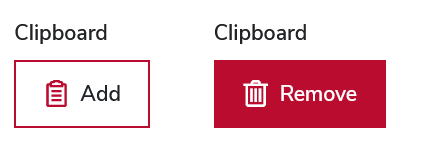
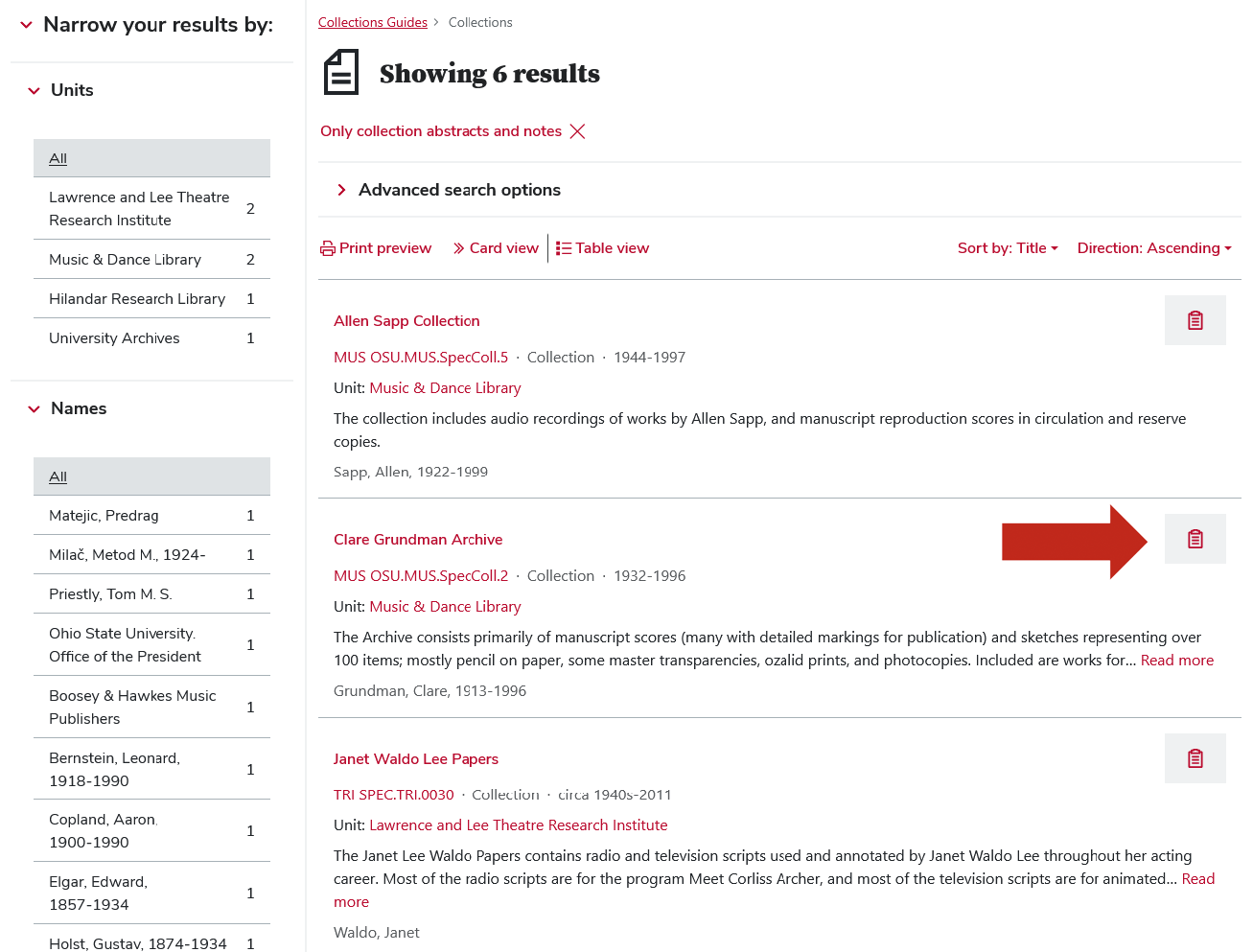
To add a record to the clipboard, click the clipboard icon for that record. It will turn red when it has been added, and you can click the icon again to remove it from the clipboard.
On the results page, the icon is to the right of the description for each record.
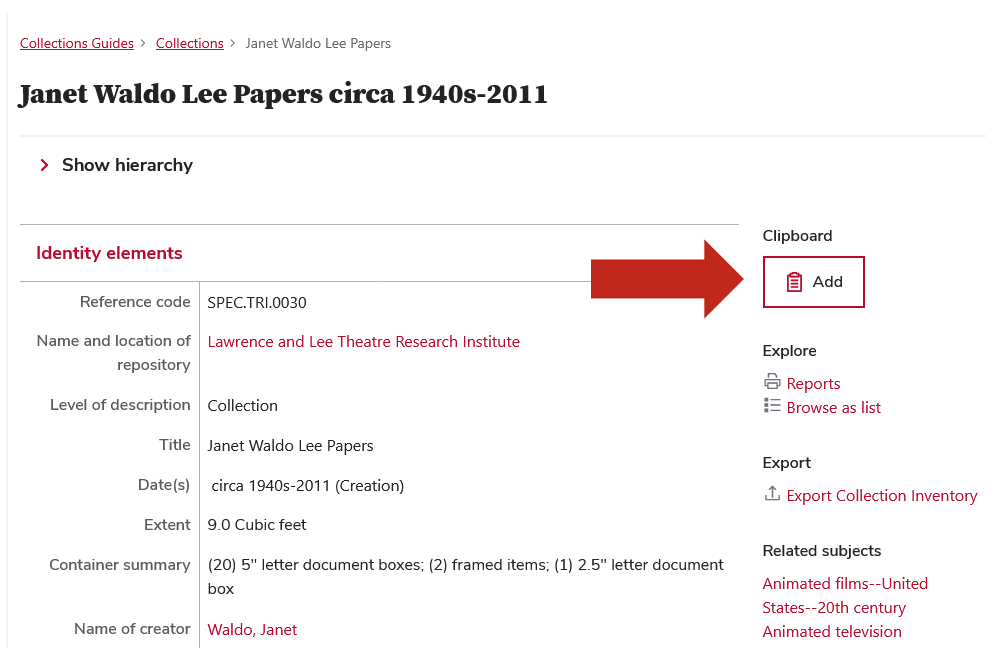
On the view page, the icon is at the top of the context menu to the right of the main description.
Viewing Items in the Clipboard
The clipboard menu is in the tool bar at the top of each page under the clipboard icon.
The menu also shows you how many selections you have made and gives you options to either view the clipboard or clear all selections.
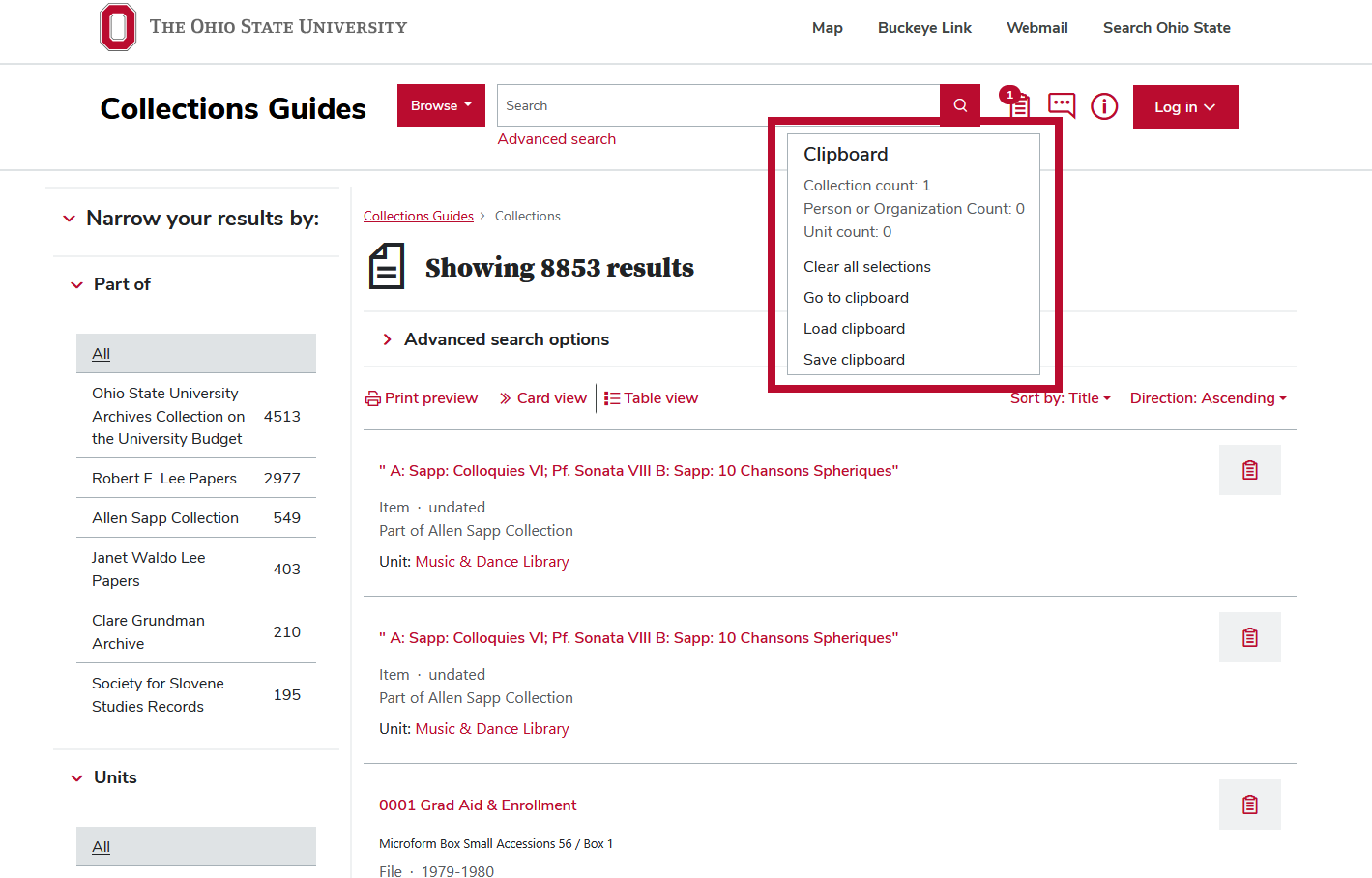
Click “Go to clipboard” to view the clipboard page.
The clipboard page shows the added records for one type of entity at a time: collection (default), authority record, or unit.
Clipboard Results by Entity Type
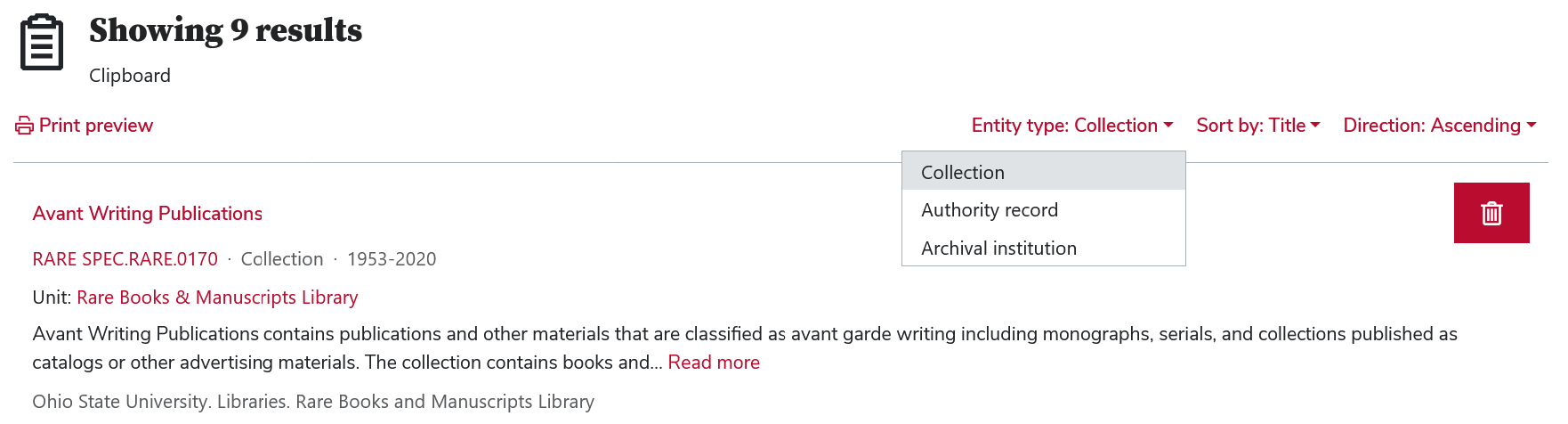
Using the drop-down menu at the top of the page, you can view the different entity types that you added. There are also drop-downs to sort the clipboard.
Export from clipboard
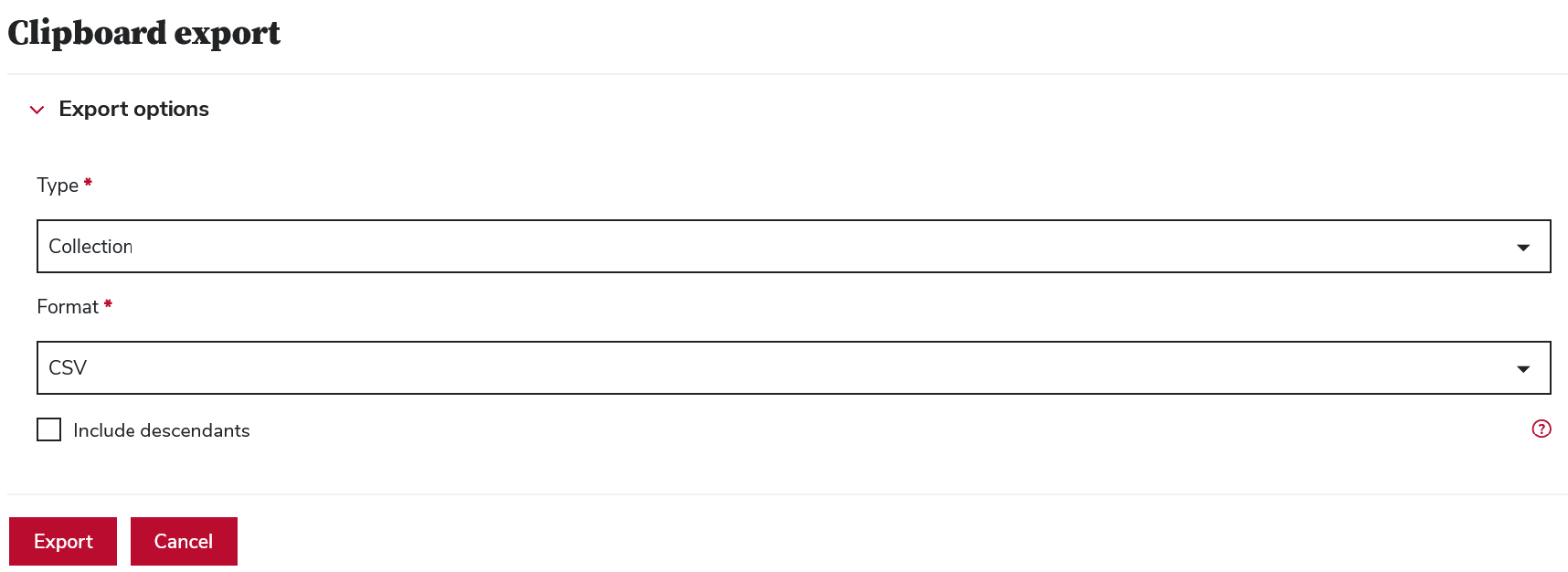
At the bottom of the page are buttons to clear the clipboard by entity or export the clipboard by each entity as either a CSV or XML file.
If choosing to clear or remove individual items from the clipboard page, a warning will pop up before the records are removed. Refresh the page to see the updated list.
