Hierarchy of a collection
When viewing a collection, click Show hierarchy at the top of the page to view the collection inventory.
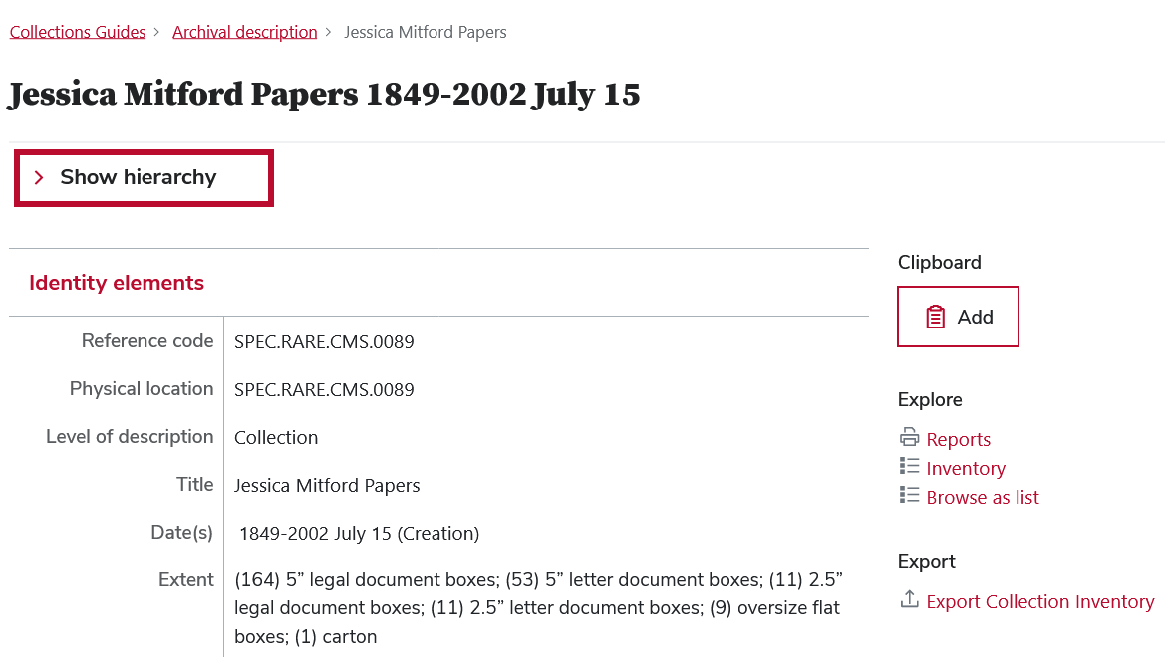
You can scroll within and/or expand the hierarchy window.
Some parts of the hierarchy (like series) can be expanded or collapsed, depending on the collection.
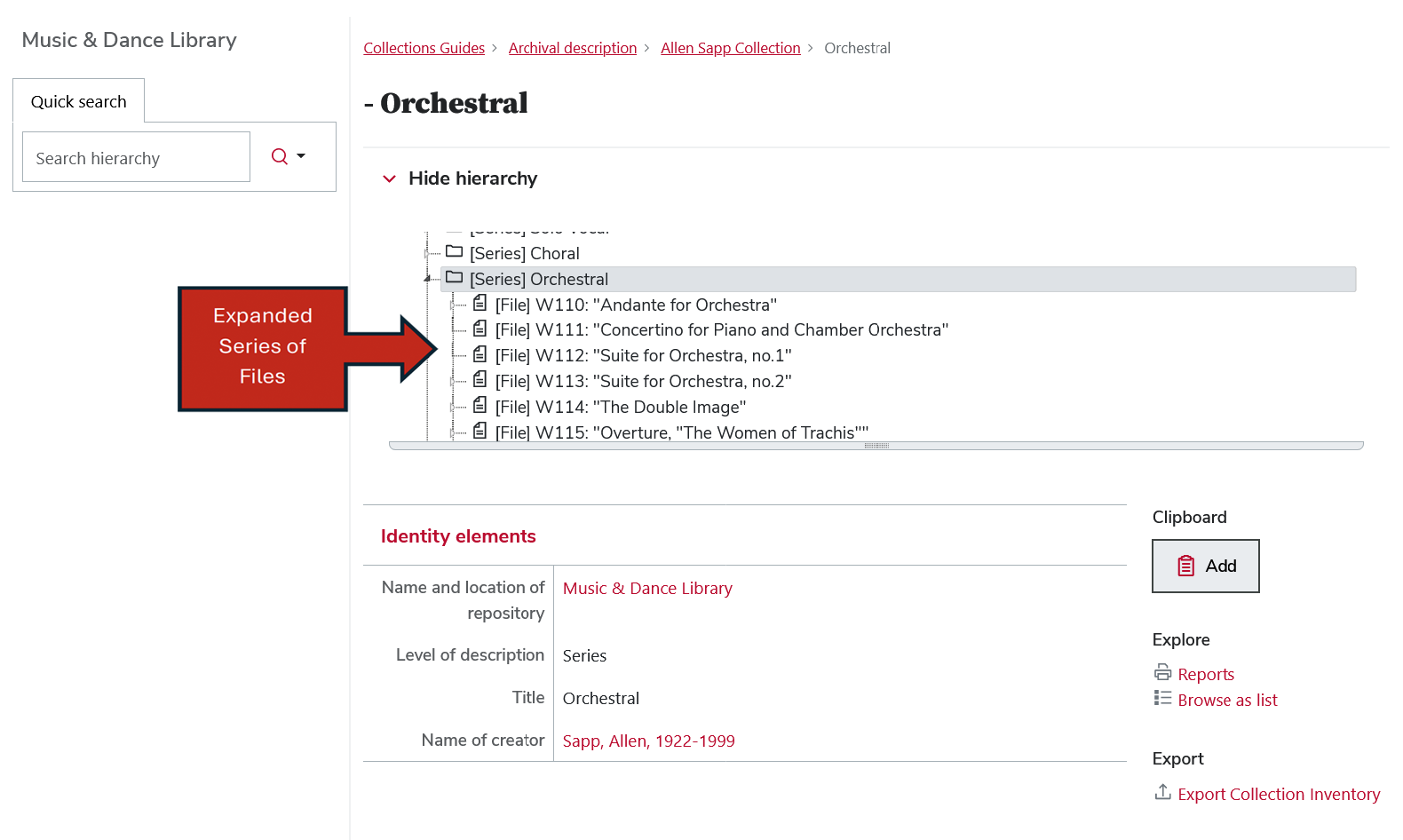
Clicking on any entry in the hierarchy will bring you to the description for that entry.
Hierarchy quick search
Use the Quick Search box to searches titles and identifiers within the hierarchy of the current description.
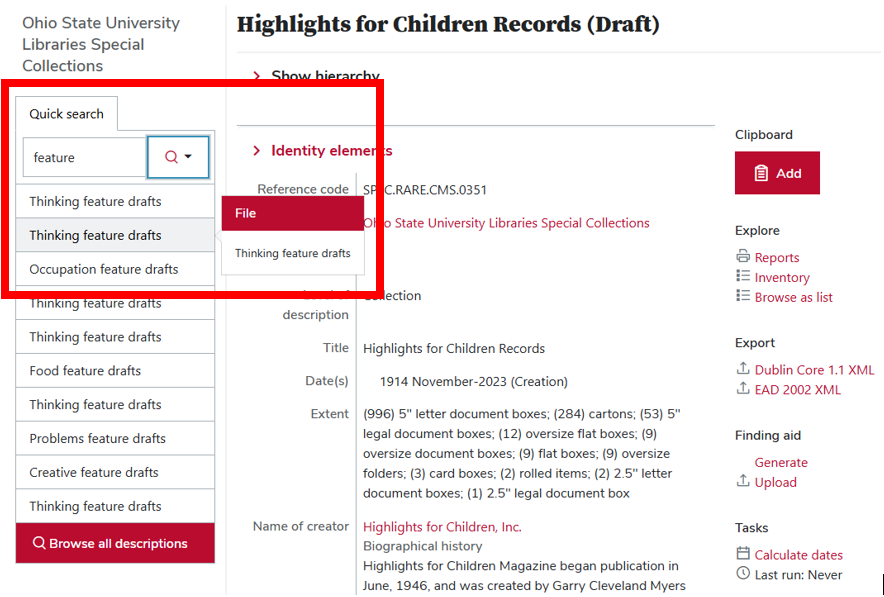
Quick Search supports Boolean search operators like AND, OR, and AND NOT.
Collection Inventory (finding aids in XML format)
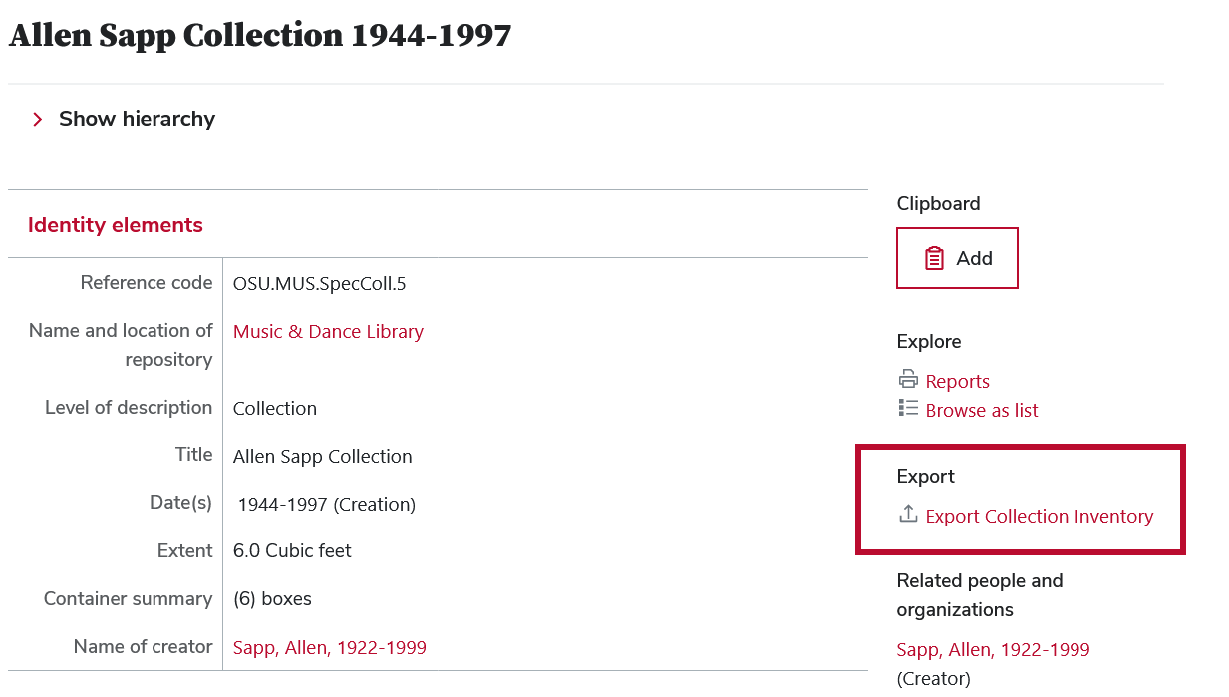
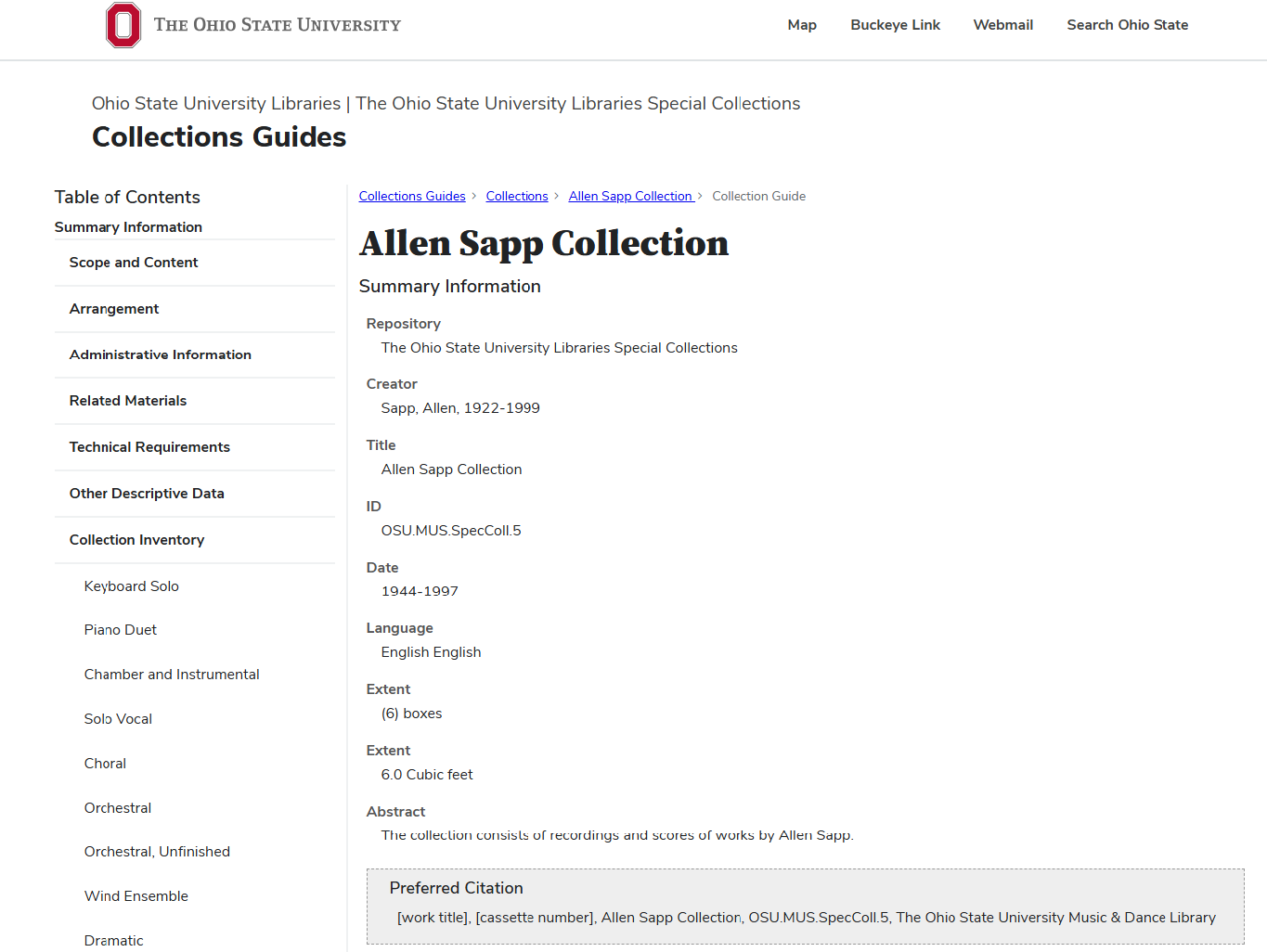
The view page for any part of a collection includes a link to view a styled XML version of the complete finding aid. Select Export the collection inventory in the context menu on the right side of the page.
Browse as list
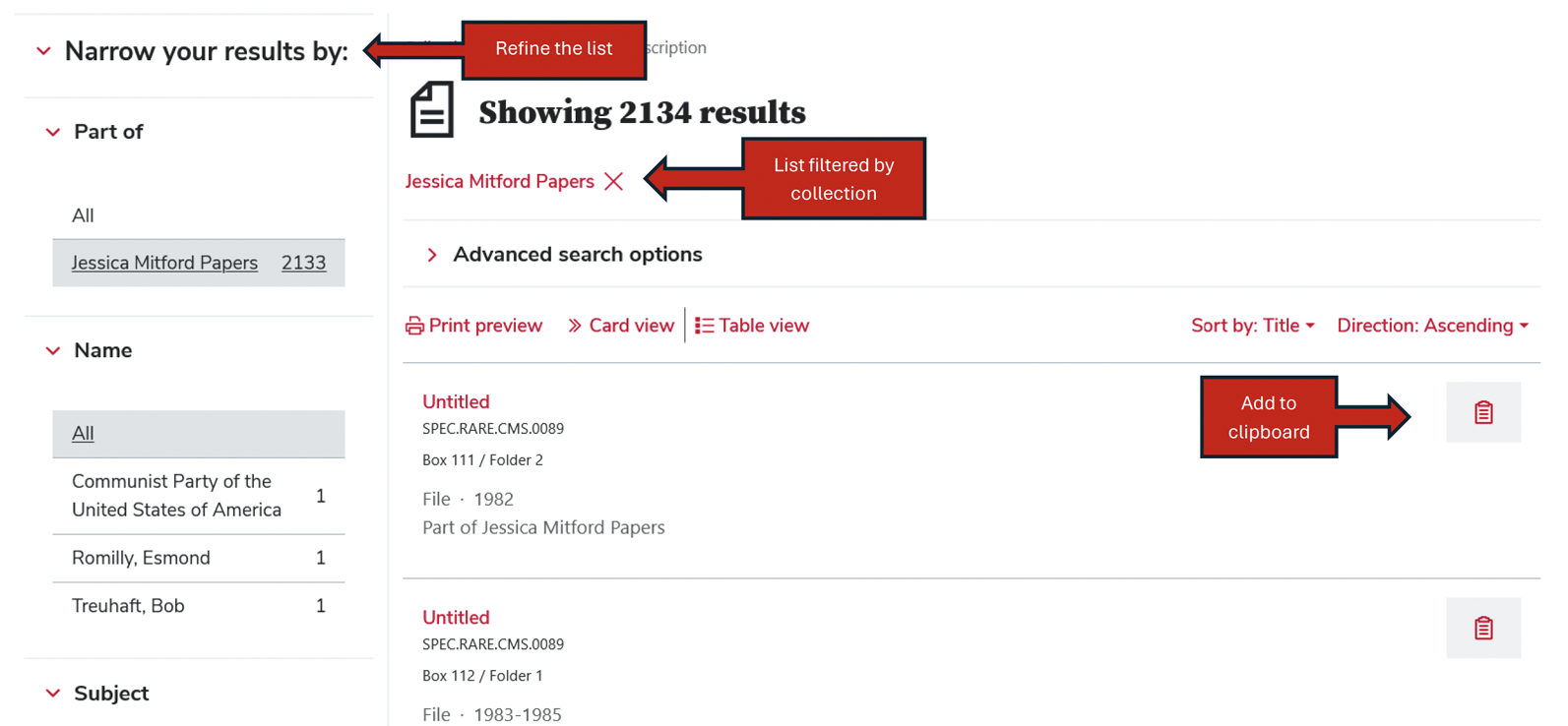
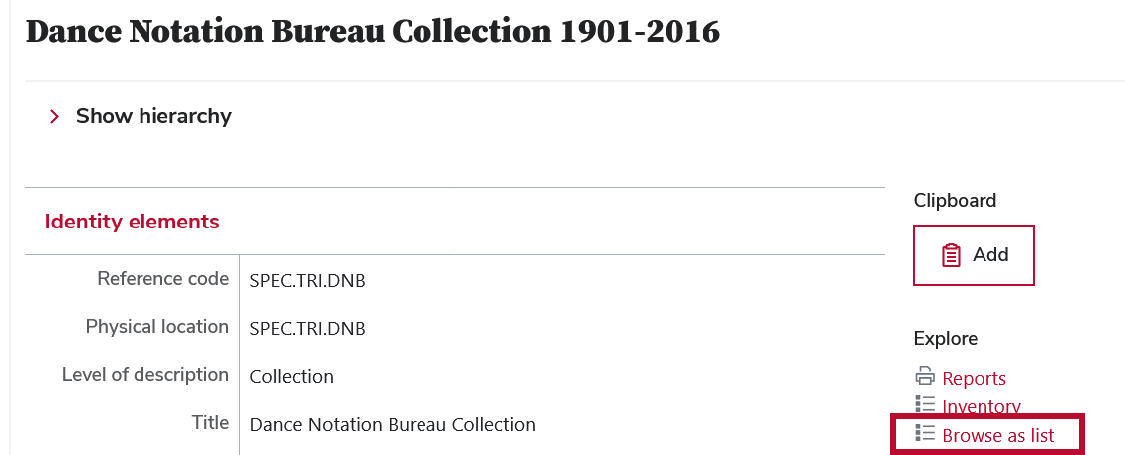
The view page for multi-level collections includes an option to “Browse as list”.
This allows you to browse all child descriptions of that collection level description.
The option can be found in the context menu on the right side of the page.
Refine and/or filter the list like you would with other search results.
To save a results to a temporary clipboard, click the Add to clipboard icon.
Note that the title of the collection level description appears as a filter tag at the top of the results page.